Learned the hard way: I used to make a new file every time someone wanted a different colour. You never need to.
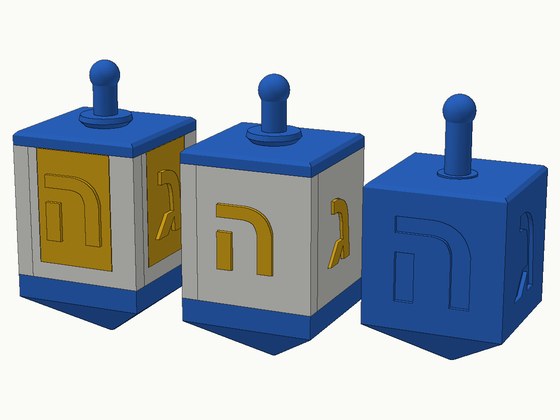
Every file on this site opens in Bambu Studio with its colours already set. Those colours are a starting point, not part of the design.
Change a colour in two clicks
- Open the .3mf in Bambu Studio.
- On the left, under Filament, click the coloured square of the colour you want to change.
- Pick the new colour (or the spool that is in your AMS), and press OK.
- Slice and print. Every part that used that colour now uses the new one.
Load the right spool
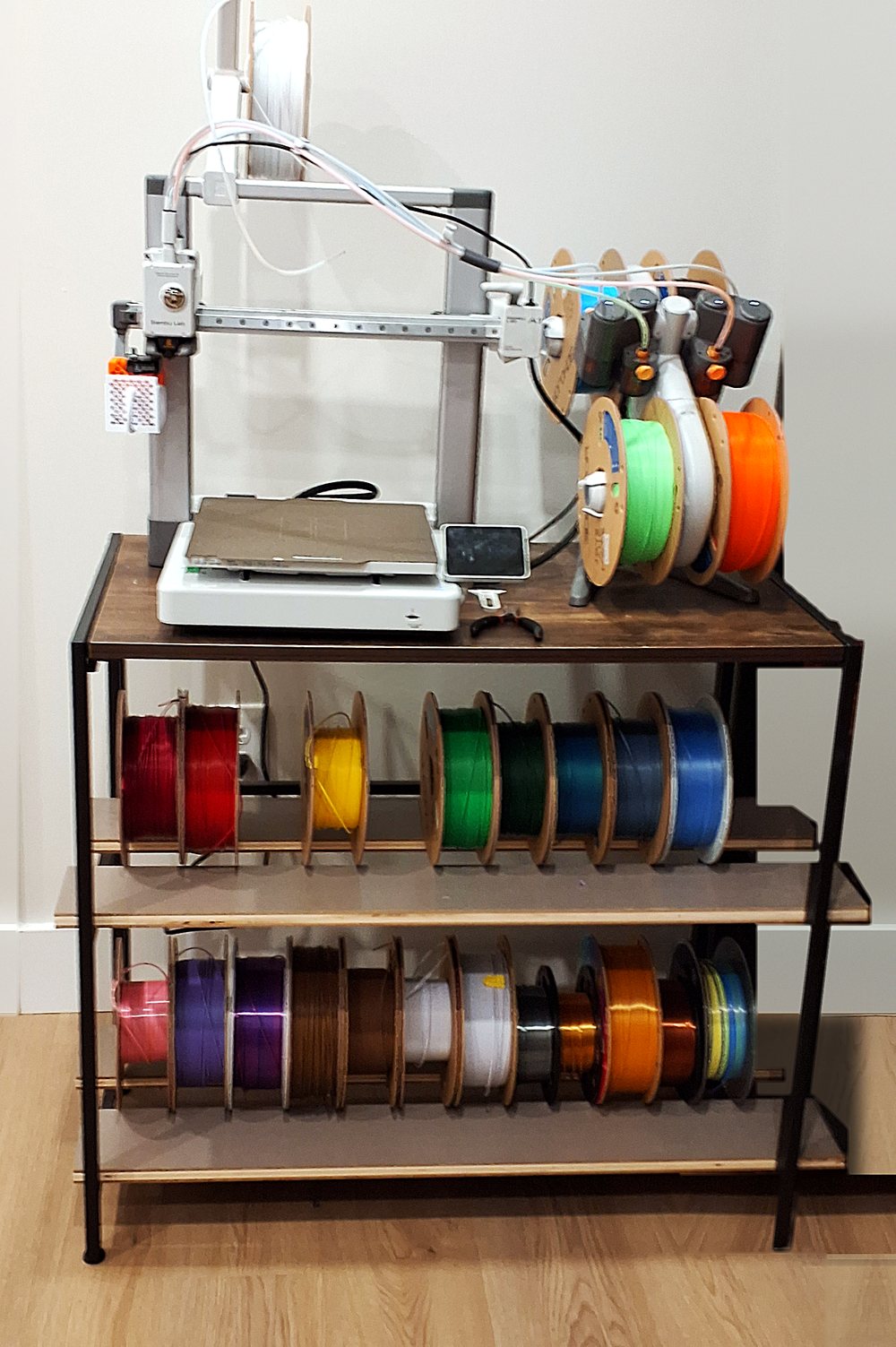
- If your AMS has the colour, point that filament slot at it, and the printer picks it up by itself.
- No AMS? Print one colour at a time, or set a pause and swap the spool by hand.
Why changing colours on the site is free
When you download a builder design, you pay for the shape: the size, the sprinkles, the letters, the name. Colours are something you can always change in Bambu Studio yourself, so if you come back and pick new colours for a design you already got, there is no extra charge.
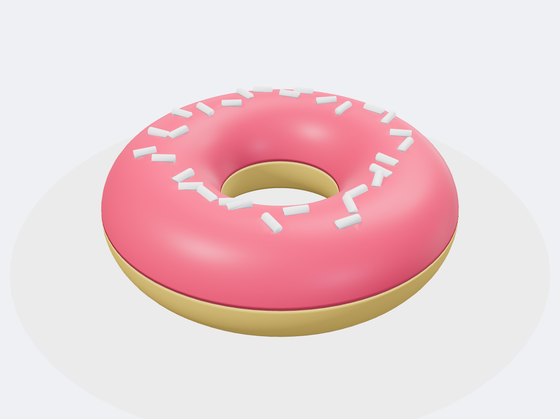
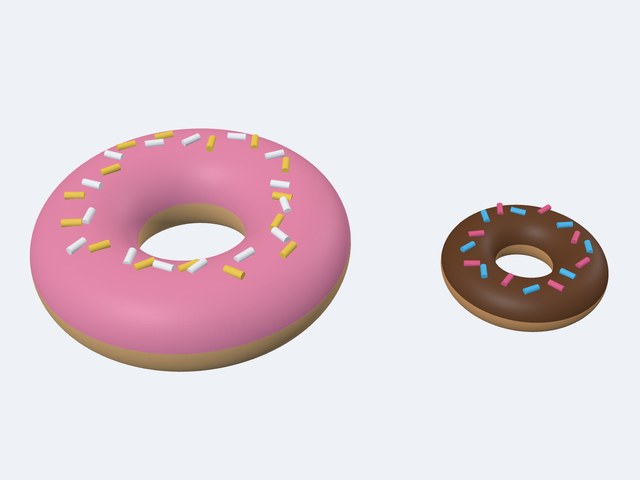 Donut BuilderPick the dough, icing and sprinkle colours. Full size or mini.Open design →
Want a few?
In Bambu Studio, right-click the model and pick Add instance. Same file, as many as fit on the plate.